Show me the code
setwd("PATH_TO_FOLDER")Welcome to this introductory tutorial on R and descriptive statistics!
By the end of this tutorial, you should be able to set your working directory, install and load R packages, import and filter data, and calculate summary statistics from that data. You will also create your first box plot!
Let’s get started!
Before you begin, make sure you download the data files needed for the tutorials. These files are available on Brightspace. Save these files in a specific folder (give it any name you like) so you can find them easily.
In R, the working directory is the default folder on your computer where R looks for files you want to read and where it saves files you create. When you refer to a file without giving its full path, R assumes it is located in the working directory. You can check the current working directory using getwd(), and you can change it with setwd("path/to/your/folder").
To set a working directory in R, you first need the path to the folder on your computer. How you get this path depends on your operating system.
On Windows, open File Explorer and navigate to the folder you want to use. Click in the address bar at the top of the window. The folder location will turn into a text path (for example, C:\Users\Name\Documents\Project). Copy this path. When using it in R, remember that backslashes must either be doubled (C:\\Users\\Name\\Documents\\Project) or replaced by forward slashes (C:/Users/Name/Documents/Project).
On macOS, open Finder and navigate to the folder. Right-click (or Control-click) the folder and hold the Option key. The menu will show “Copy … as Pathname”. Copying this gives you a path such as /Users/name/Documents/Project, which you can paste directly into R without modification.
Set a working directory using setwd(). Choose the folder in which you saved the data files that you downloaded from Brightspace.
setwd("PATH_TO_FOLDER")An R package is like a toolbox, except that instead of containing tools, it contains functions for performing specific tasks such as filtering data, calculate descriptive statistics (such as average, variance, standard deviation, etc.), or fitting a statistical model. Most of the R packages you will need for these tutorials are freely available from CRAN (The Comprehensive R Archive Network) or GitHub. You can install CRAN R packages using install.packages(). If you want to install an R package stored in a GitHub repository, use install_github() in the devtools R package.
Install an R package called readxl, which will allow you to import data from Excel files. When using install.packages() to perform this operation, remember to enclose readxl in quotation marks, as it is a character string.
Once this is done, install the tidyverse package, which is a collection of R packages for data science. When installing tidyverse, you will install a suite of R packages that are very commonly used when processing and visualising data, such as readr, dyplr, tibble, ggplot2, and more!
#Install readxl
install.packages("readxl")

#Install tidyverse
install.packages("tidyverse")In R, you load an R package using the library() function. You simply write the name of the package inside the parentheses without quotation marks. Once a package is loaded, all of its functions become available for use in your session. You only need to load a package once per R session, but you must do so every time you restart R.
R packages can also be loaded directly in RStudio without writing any code. In the Packages tab (usually in the bottom-right pane), you can tick the box next to a package name to load it. RStudio will automatically run the corresponding library() command in the background. While this can be convenient, writing library() in your script is recommended for reproducibility, as it makes your code self-contained and easier to share.
Load readxl and tidyverse using library().
library(readxl)
library(tidyverse)On Brightspace, you will find the raw data file (gss_statistics_master_data_set2) in two formats: an Excel worksheet (.xlsx extension) and a Comma Separated Values file (.csv extension). Both files contain exactly the same data, but they give us the opportunity to explore different ways to import data into R.
R offers a variety of functions for importing data, and the best choice usually depends on the file format. For example:
read_csv() from the readr package is a convenient option.read_delim() is more flexible.read_excel() from the readxl package allows you to import the data directly.Using these functions, you can quickly bring your data into R and start exploring it. By default, all of these functions assume that the first row of your data contains the column names (or variable names).
To use the functions listed above, you simply provide the file name and extension in quotation marks as an argument.
Load the data from one of the two files available on Brightspace (gss_statistics_master_data_set2). Store the data in an R object called data. If you choose the CSV file, use the read_csv() function; if you choose the Excel file, use the read_excel() function.
#Option 1 (csv file)
data <- read_csv("gss_statistics_master_data_set2.csv")

#Option 2 (Excel file)
data <- read_excel("gss_statistics_master_data_set2.xlsx")In R, missing values in a dataset are represented by NA, which stands for Not Available. R treats NA as an unknown value rather than as zero. As a result, any calculation or comparison involving a missing value usually returns NA, because the result cannot be determined.
Before working with a new dataset, it is always recommended to check how many values are missing and where they occur in the data. Identifying missing values and the groups they affect is important, as they can have implications for data analysis (discussed later in this course).
In the previous tutorial, you learned about indexing (i.e., how to extract a value from an R object). When working with tidy data frames, it is very handy to rely on functions of the dplyr package to filter data and select variables.
Filtering allows you to select specific rows in your dataset based on column values. This is particularly useful if you only want to work on specific factor levels. We can do this using filter() from the dplyr package.
To make the filter() function work, you must provide a data frame as the first input (this is the dataset you want to filter). Then, you need to specify one or more logical conditions that describe which rows should be kept. These conditions are usually built using relational and logical operators and are written using the variable names from the dataset, without quotation marks. filter() then returns a new data frame containing only the rows that satisfy the given conditions.
In R, the notation :: is used to access a specific object (such as a function or dataset) from a particular package without attaching that package with library(). For example, dplyr::filter() explicitly calls the filter() function from the dplyr package, avoiding ambiguity if another package defines a function with the same name.
subset1 that only contains observations associated with eco farms (farm_type variable). Make sure to use the filter() function in the dplyr package using dplyr::filter().subset2 that only contains observations associated with eco farms (farm_type variable) that have a coffee productivity greater than or equal to 1000 kg/ha/year (coffee_prod variable).subset1 <- dplyr::filter(data, farm_type == "eco")subset2 <- dplyr::filter(data, farm_type == "eco" & coffee_prod >= 1000)If you have a large dataset, you may want to subset your data and only keep the variables that interest you the most. This is done using select(). You can use the same function to selectively remove columns from your dataset. It works in a similar way to filter(), but instead of using logical conditions to keep rows, select() uses variable (column) names to choose which columns to keep (or remove). The variable names are written without quotation marks, and the result is a new data frame containing only the selected columns.
Create a new data frame called subset3 that only contains information about the farm type and soil characteristics (). Make sure to use the select() function in the dplyr package using dplyr::select().
subset3 <- dplyr::select(data,
                         farm_type,
                         pH,
                         SOM,
                         clay,
                         P_soil,
                         K_soil,
                         SB,
litter_thickness)Descriptive statistics are useful to better understand and describe our data. It is possible to calculate descriptive statistics in R using base R functions or formulas. Some of the most important functions to compute statistical parameters are shown in Table 1.
| R function | Description |
|---|---|
sum() |
Returns the sum of a set of observations |
mean() |
Returns the average value of a set of observations |
sd() |
Returns the standard deviation of a set of observations |
var() |
Returns the variance of a set of observations |
min() |
Returns the minimum value of a set of observations |
max() |
Returns the maximum value of a set of observations |
range() |
Returns the range [min - max] of a set of observations |
median() |
Returns the median value of a set of observations |
quantile() |
Returns the quantile values of a set of observations |
Take a good look at the dataset (data) and answer the questions below.
Calculate the average, variance, and range of all the plant variables and store these values into separate R objects. Remember that the dollar sign ($) can be used to access a specific column in a data frame.
Use this information to calculate the coefficient of variation of each plant variable. Remember that the coefficient of variation (CV) is calculated by dividing the standard deviation (the square root of the variance) by the mean. It provides a standardized measure of variability relative to the size of the mean. The sqrt() function allows you to calculate the square root of a number. Which variable has the highest variation relative to the mean?
Calculate the standard deviation of tree_density using two different approaches. Remember that the general formula to calculate a standard deviation is:
\[ s = \sqrt{\frac{1}{n-1} \sum_{i=1}^{n} \left(y_i - \bar{y}\right)^2} \]
sum() and length() functions to write a formula to calculate the standard deviationsd() function to calculate the standard deviationReflect on the differences between the mean and the median. What is the main difference between these two descriptive statistics? Which one is more sensitive to the presence of outliers in the data?
#Calculate mean values
mean_tree_cover <- mean(data$tree_cover)
mean_tree_density <- mean(data$tree_density)
mean_total_species <- mean(data$total_species)
mean_shannon <- mean(data$shannon_PIM)
mean_CWM_SLA <- mean(data$CWM.SLA)
mean_CWM_N <- mean(data$CWM.N)

#Calculate variance values
var_tree_cover <- var(data$tree_cover)
var_tree_density <- var(data$tree_density)
var_total_species <- var(data$total_species)
var_shannon <- var(data$shannon_PIM)
var_CWM_SLA <- var(data$CWM.SLA)
var_CWM_N <- var(data$CWM.N)

#Calculate range values
range_tree_cover <- range(data$tree_cover)
range_tree_density <- range(data$tree_density)
range_total_species <- range(data$total_species)
range_shannon <- range(data$shannon_PIM)
range_CWM_SLA <- range(data$CWM.SLA)
range_CWM_N <- range(data$CWM.N)#Calculate coefficients of variation (CV)
CV_tree_cover <- sqrt(var_tree_cover) / mean_tree_cover
CV_tree_density <- sqrt(var_tree_density) / mean_tree_density
CV_total_species <- sqrt(var_total_species) / mean_total_species
CV_shannon <- sqrt(var_shannon) / mean_shannon
CV_CWM_SLA <- sqrt(var_CWM_SLA) / mean_CWM_SLA
CV_CWM_N <- sqrt(var_CWM_N) / mean_CWM_N
#Find the variable with the greatest CV value
#Start by creating a named vector containing all the CV values
all_CVs <- c(
CV_tree_cover = CV_tree_cover,
CV_tree_density = CV_tree_density,
CV_total_species = CV_total_species,
CV_shannon = CV_shannon,
CV_CWM_SLA = CV_CWM_SLA,
CV_CWM_N = CV_CWM_N
)
#Then, sort values in the vector from the largest to the smallest
sort(all_CVs, decreasing = TRUE)The variable tree_cover presents the highest variation in relation to the mean (CV=1.592). The variation is very high because some farms have a lot of trees (high tree cover) while others have none.
#Approach 1
sum_of_squares <- sum((data$tree_density - mean(data$tree_density))^2)
sd_tree_density <- sqrt(sum_of_squares / (length(data$tree_density)-1))

#Approach 2
sd_tree_density <- sd(data$tree_density)
The mean and the median are both measures of central tendency. The mean is calculated as the arithmetic average and therefore depends on the magnitude of all observations, whereas the median is the middle value when the data are ordered from smallest to largest. Because the mean incorporates all values directly, it is highly sensitive to outliers: a single extreme observation can substantially shift it. The median, in contrast, is more robust to outliers (unless extreme values alter the middle position of the dataset).
When visualising data in R, you can of course use base R functions (e.g., plot, points, lines, boxplot, etc.). In this course, however, we will mostly focus on functions of the ggplot2 R package (although we will also use some base R functions to create plots from time to time). This is because ggplot2 can produce high-quality figures very quickly, even for complex datasets. With ggplot2, you can generate a wide variety of graphs, including scatter plots, bar charts, histograms, box plots and much more, while having control over layouts, labels and aesthetics, such as colours, sizes and shapes. ggplot2 relies on a coherent system for building graphs: the grammar of graphics. Using ggplot2 requires you to learn a new grammar, which may sound overwhelming at first, but is in fact easy to learn because it relies on a simple set of core principles.
This tutorial will only give you a very brief introduction to ggplot2. If you want to explore all the possibilities offered by ggplot2 for data scientists, we recommend going through Hadley Wickham’s reference book: ggplot2: Elegant Graphics for Data Analysis. To freely access the content of this book, just click on its cover.
Posit, the open source data science company behind RStudio, developed some very useful cheat sheets to help you remember how to use some of the core tidyverse packages, including ggplot2. You can download the ggplot2 cheat sheet using this link.
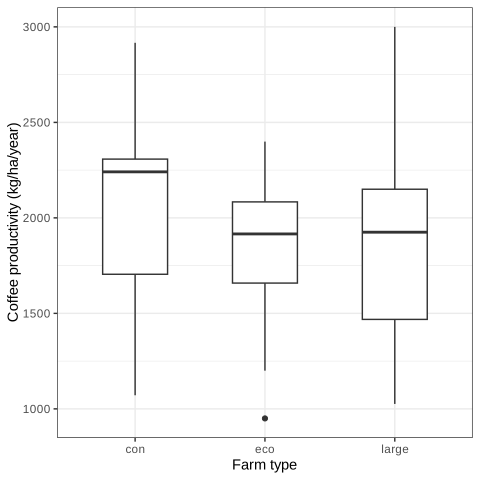
In this last section of the tutorial, we are going to create a box plot that shows how coffee productivity (coffee_prod variable) depends on farm type (farm_type variable).
You can start creating a plot using the function ggplot(). Later on, we will add new layers to this ggplot object (using the + sign).
ggplot() has two main arguments: data and mapping. The data argument is used to specify the name of the dataset that should be used to create the graph. The mapping argument is used to specify how variables in your dataset are linked to visual properties (referred to aesthetics) of your plot. You should always use the aes() function for the mapping argument. The x and y arguments of aes() are used to choose the x (horizontal) and y (vertical) variables of your plot, respectively. The general syntax to create a ggplot object looks like this:
ggplot(data = your_data, mapping = aes(x, y, other aesthetics))
Create your first ggplot using farm_type and coffee_prod as the x and y variables, respectively.
ggplot(data = data, mapping = aes(x = farm_type, y = coffee_prod))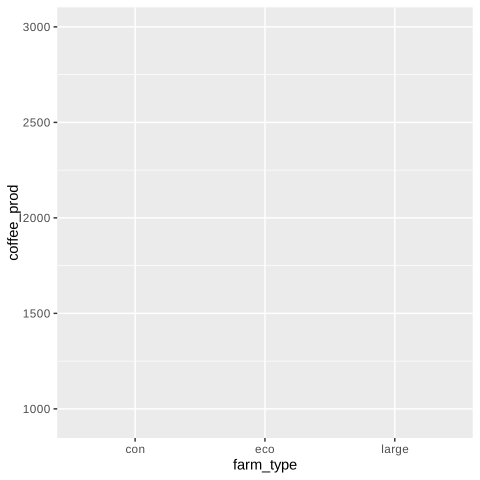
As you can see, the structure of the plot is there, but it does not display any data yet. This is because we have not specified in our code how our observations should be represented in our plot. You can do this by defining a geom. In ggplot2, there are a number of geom to choose from. Here are a few examples (but see ggplot2 cheat sheet for more examples):
geom_point(): This geom is used to display individual data points and create a scatter plot.
geom_jitter(): This geom is similar to geom_point() but jitters the data to improve readability.
geom_line() and geom_path(): These geom are used to add lines connecting observations in your graph. While geom_path() connects observations in the order in which they appear in the data, geom_line() connects observations in the order of the variable plotted on the x axis of your graph.
geom_boxplot(): This geom is used to create a box plot, which is particularly useful to display and compare the distribution of a response variable for different groups.
geom_bar(): This geom is used to create bar charts.
geom_abline(): This geom is used to add horizontal, vertical, and diagonal lines to your graph.
Use geom_boxplot() to create a box plot showing how coffee productivity (coffee_prod) varies among farm types (farm_type). Make the boxes narrower by adjusting the width argument in geom_boxplot() (the default is width = 1). Use xlab() and ylab() to add clear and informative axis labels, including units. Optionally, you may change the appearance of the plot by applying a different theme, such as theme_bw() for a dark-on-light style.
ggplot(data = data, mapping = aes(x = farm_type, y = coffee_prod)) +
  geom_boxplot(width = 0.5)+ #Create a box plot
  xlab("Farm type")+ #Change name of x axis
  ylab("Coffee productivity (kg/ha/year)")+ #Change name of y axis
  theme_bw() #This creates a black/white plot