Ollama Open WebUI
Description
Open WebUI is a user-friendly and privacy-friendly AI platform that allows you to interact with AI models locally on your workspace. This workspace is configured to use Ollama models that are downloaded directly to the workspace. You can also use models from HuggingFace.
Ollama Open WebUI gives you complete privacy as all processing happens on your workspace, no information is sent to external AI services.
For security reasons, the Open WebUI API is disabled by default.
Creation
Before creating your workspace, consider:
- Which model do you want to use? (See recommendations below)
- How much storage do you need? Models can be very large (1GB - 40GB+)
- Do you need GPU acceleration? Required for large models (>8B parameters)
If you plan to download large models, create and attach a storage volume first.
See the Getting started page for more info about how and why to create a storage volume.
Remember that you are responsible for making backups of any data yourself! Although data on a storage unit will not be deleted when you delete the workspace, storage volumes are not backed up. Make sure to regularly backup your files, especially files or edits to code that are not easy to recreate when lost.
Recommended Models and Resources
Here are some popular Ollama models with their resource requirements:
| Model | Size | Parameters | CPU/GPU | Best For |
|---|---|---|---|---|
qwen2.5:0.5b |
~0.4 GB | 0.5B | CPU | Very fast responses, testing, simple coding |
llama3.2:1b |
~1 GB | 1B | CPU | Multilingual knowledge retrieval, simple tasks |
gemma2:2b |
~1.6 GB | 2B | CPU | Text generation, natural language processing research |
qwen2.5:3b |
~2 GB | 3B | CPU | Coding and mathematics, data analysis |
llama3.2:3b |
~2 GB | 3B | CPU | Summarisation, prompt rewriting, tool use |
mistral:7b |
~4 GB | 7B | CPU/GPU | Reasoning, text generation, comprehension |
llama3.1:8b |
~5 GB | 8B | GPU recommended | Coding, complex tasks |
qwen2.5:14b |
~9 GB | 14B | GPU recommended | Advanced reasoning and coding |
gpt-oss:20b |
~12 GB | 20B | GPU (A10) | Powerful reasoning, agentic tasks, fine-tunable |
Find all available Ollama models here: List of Ollama models
Workspace Size Selection
When creating your workspace, you’ll need to select a processor configuration:
Since Ollama is resource-intensive, we recommend:
- For small models (1B-8B): 2-16 CPU cores, depending on size
- For large models (10B+): GPU workspaces
These are rough estimations, it may help to check the requirements of the model you would like to use online. Additionally, to spend energy and credits wisely, it is useful to experiment a bit with different (small to large) workspace configurations to find the appropriate configuration where your pipeline runs satisfactory (see responsible use). If you are unsure, please contact us.
If you select a workspace with a GPU, select the CUDA box under Optional Components in the next step during workspace creation. Without CUDA, the GPU will not be available to the workspace.
Create a workspace
In the Research Cloud portal click the ‘Create a new workspace’ button and follow the steps in the wizzard.
See the workspace creation manual page for more guidance.
Access
Usage
Pulling Models from Ollama
When you access the workspace for the first time, a default model smollm:135m is already loaded. However, you may want to download and use other models. See Ollama models for a complete list of models.
To use a different model, simply copy the name of the desired model and select the model dropdown in the top left. From there, you can search for the required model and pull it. Pulling a model may take some time depending on the size of the model. Once finished, you can use the pulled model on your workspace.
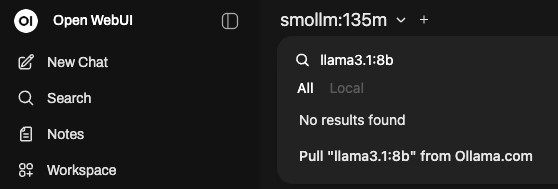
Model downloads are stored on your workspace. If you attached a storage volume, they’ll be preserved even if you delete and recreate the workspace.
NOTE: Cloud-only models CANNOT be pulled, and are not recommended when data cannot be send to online services.
Getting Started
Once you have pulled a model, you can begin using the features available such as Chatting with models or Uploading documents to analyze files.
For detailed guides on using Open WebUI’s features, see the Open WebUI documentation and Ollama documentation.
A good way to get started is to test the model’s capabilities by asking it questions or giving it tasks related to your research. You can also experiment with uploading documents and asking the model to analyze them.
Here you can find some practical usage tips for managing and interacting with language models.
Using Tools
Open WebUI supports Tools that extend model capabilities beyond chatting. Tools allow models to perform actions like web searches, calculations, code execution, and interact with external APIs.
Common uses:
- Enable web search for current information beyond training data
- Run Python code for data analysis or visualizations
- Create custom tools to integrate with your APIs or databases
- Generate images or perform specialized tasks
Learn more:
- Open WebUI Tools Documentation: Learn how to create and use tools
- Available Tools: Browse community-created tools
Using Functions
Open WebUI supports Functions that allow you to customize and extend how models behave and process information. Unlike tools (which perform external actions), functions modify the model’s input/output pipeline.
Common uses:
- Pre-process user messages before sending to the model
- Post-process model responses for custom formatting
- Add custom logic for specific workflows
- Filter or transform content automatically
Learn more:
- Open WebUI Functions Documentation: Learn how to create and use functions
- Available Functions: Browse community-created functions
Do you want to use Ollama models from within Python code? Check out the Ollama from Python manual for instructions on setting up Ollama in Python workbench and UU VRE workspaces.
Using API Keys
If you want to interact with your Ollama models programmatically from scripts or applications instead of only using the web interface, you can enable API access.
You can use the Open WebUI API keys to:
- Automate model interactions from scripts
- Integrate Ollama into data processing pipelines
- Batch process multiple documents
- Build custom applications using your models
Enabling API Access
Open WebUI API is disabled by default. This is to be as secure as possible by default, as using the API means that SRAM authentication must be disabled for the API route.
However, you can enable the API during the last step of creating your workspace.
Under Workspace Parameters, you can enable API access by entering yes in the “Expose OpenWebUI API (yes/no)” parameter
Only enable the API if you need programmatic access. Exposing Open WebUI API bypasses SRAM authentication and uses API keys for security instead.
Setting Up and Using API Keys
To see how to create and set up an API Key, follow this manual: Open WebUI API Keys Manual
API Endpoint: The API is accessible at https://your-workspace-url/ext/api (Note: uses /ext/api, not /api)
Additional documentation on Open WebUI API access can be found here: Open WebUI API Documentation
For an extra layer of security, you can add HTTP Basic Authentication to the API endpoint in addition to API keys.
To see how to set up HTTP Basic Authentication refer to the Additional API Security documentation
Do not share your API keys with anyone, and do not expose them in public code repositories. Treat them like passwords to prevent unauthorized access to your models and data.
If you have pulled several models but are not using them anymore, then remove them. Go to Settings → Admin Settings in the bottom → Models, and then disable the models you no longer use.
Keep your storage volume in mind as large models and tasks can take up a lot of space.
Keep the costs of running the workspace in mind as well, and pause the workspace when not using it. Refer to the cost calculator for an estimate of the costs.