Folder Structures
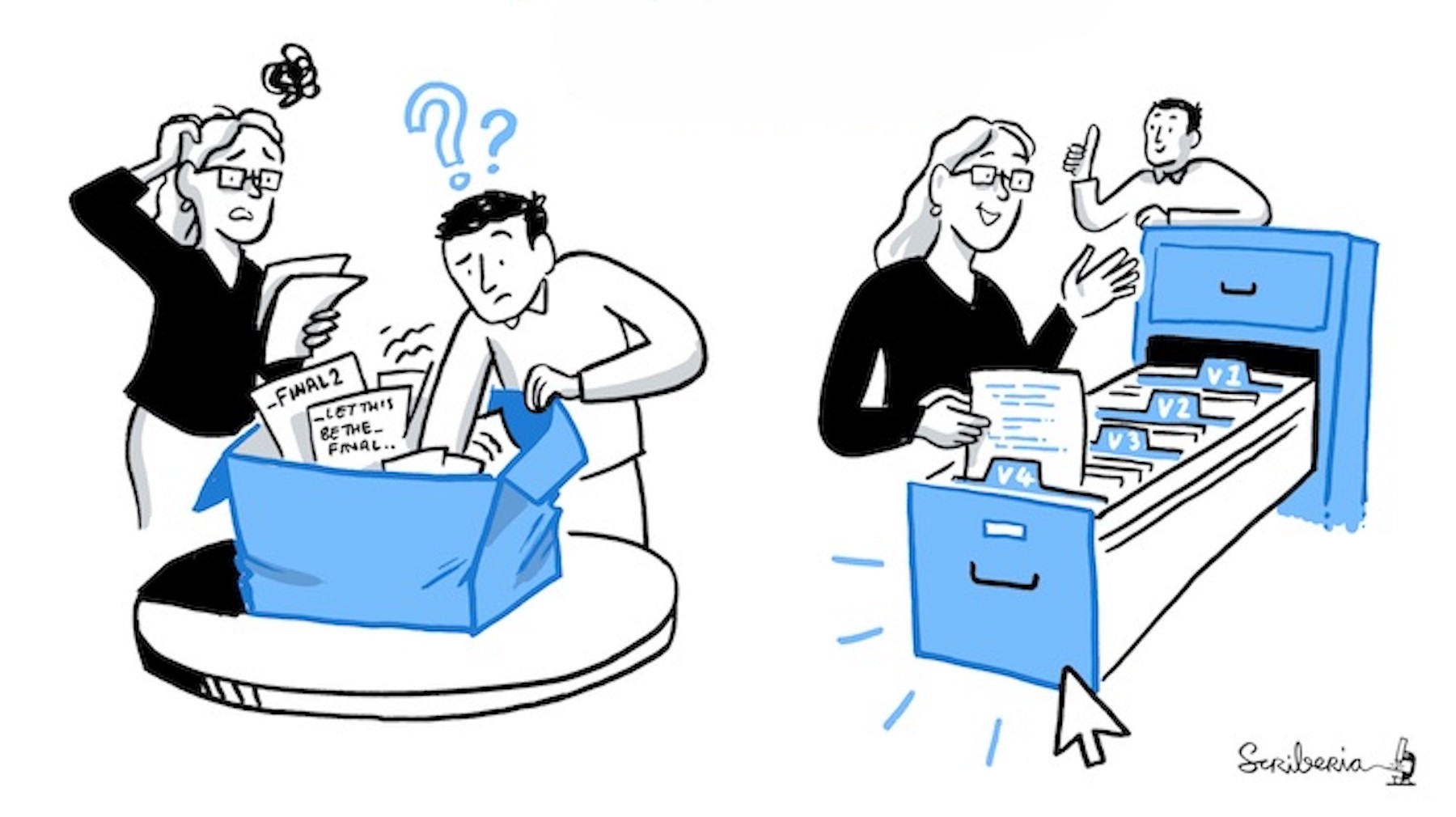
What
Whether it’s on your computer or in the cloud, your project will likely be organized into folders and subfolders that contain your research materials.
Why
A clear folder structure groups materials in a predictable and consistent way. It helps you know exactly where each type of file belongs, making it easier to organize and locate them. It also keeps things aligned when multiple people contribute to the same project.
Who
The project lead — this could be the principal investigator (PI) for a larger project or the lead author for a manuscript — should define the folder structure. All collaborators should be informed about the structure and expected to follow it.
When
A folder structure should be established at the start of a project. However, it can be refined or reorganized as the project evolves.
Where
Your folder structure should be implemented in the storage location for your project. The same principles apply when archiving or publishing your project on other platforms.
How
First things first, remember to keep the naming convention you defined in mind and apply it consistently.
Next, create a primary folder for your project. Thereafter, categorize similar materials as much as possible into subfolders. Within your subfolders, avoid creating more layers. Keep the hierarchy shallow, ideally around 3–4 levels in total
This is a general recommendation, the structure is flexible and can be customized. Ultimately, the aim to keep it user-friendly and avoid overcomplication.
Project vs. Publication
We can distinguish between folder structures at the project level and the publication level. The former encompasses the entire research project, while the latter pertains to a single article or manuscript.
Project-Level
UMCU
The UMCU provides a pre-defined series of folders for projects stored within the Research Folder Structure (RFS).
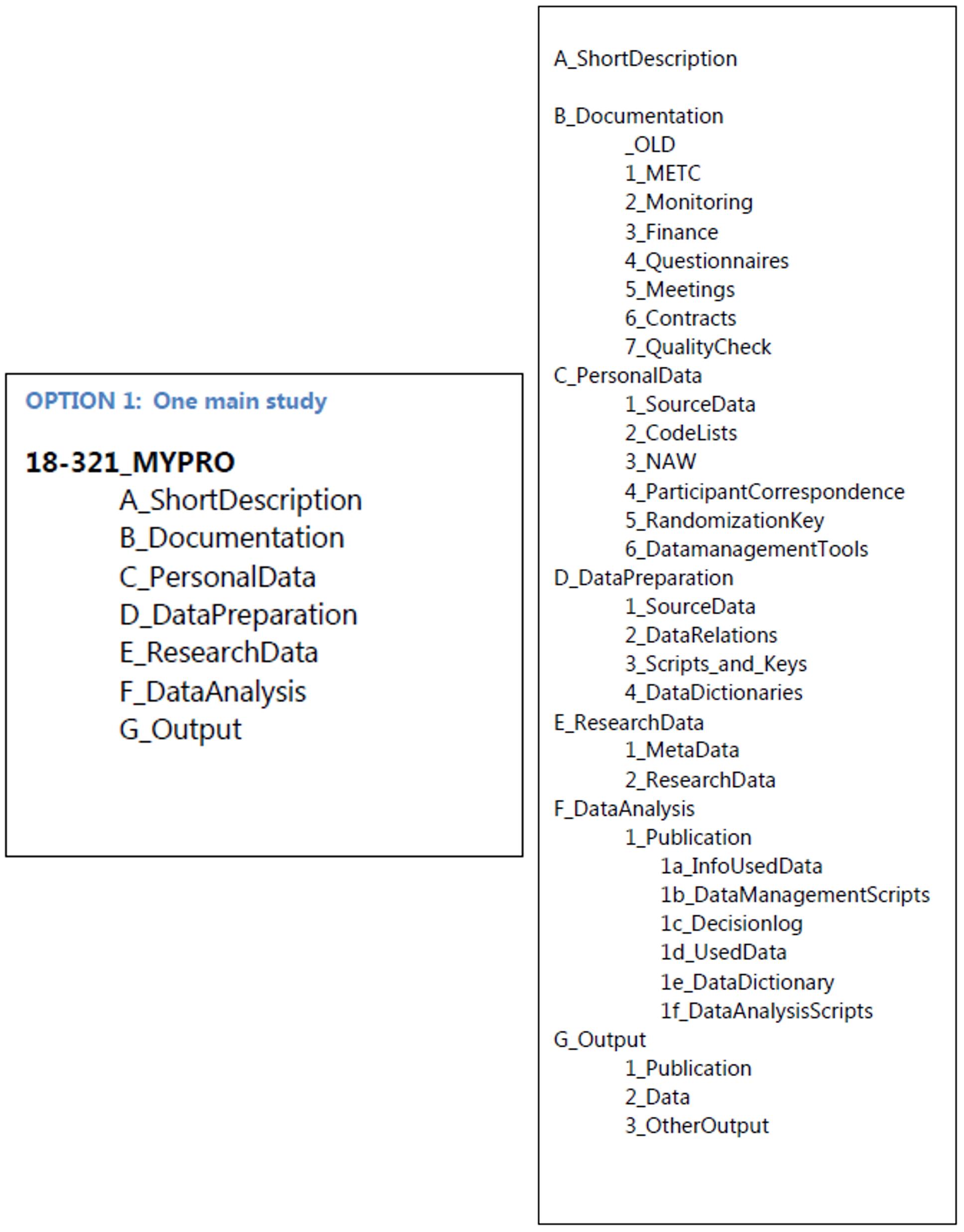
Tonic Research Project Template
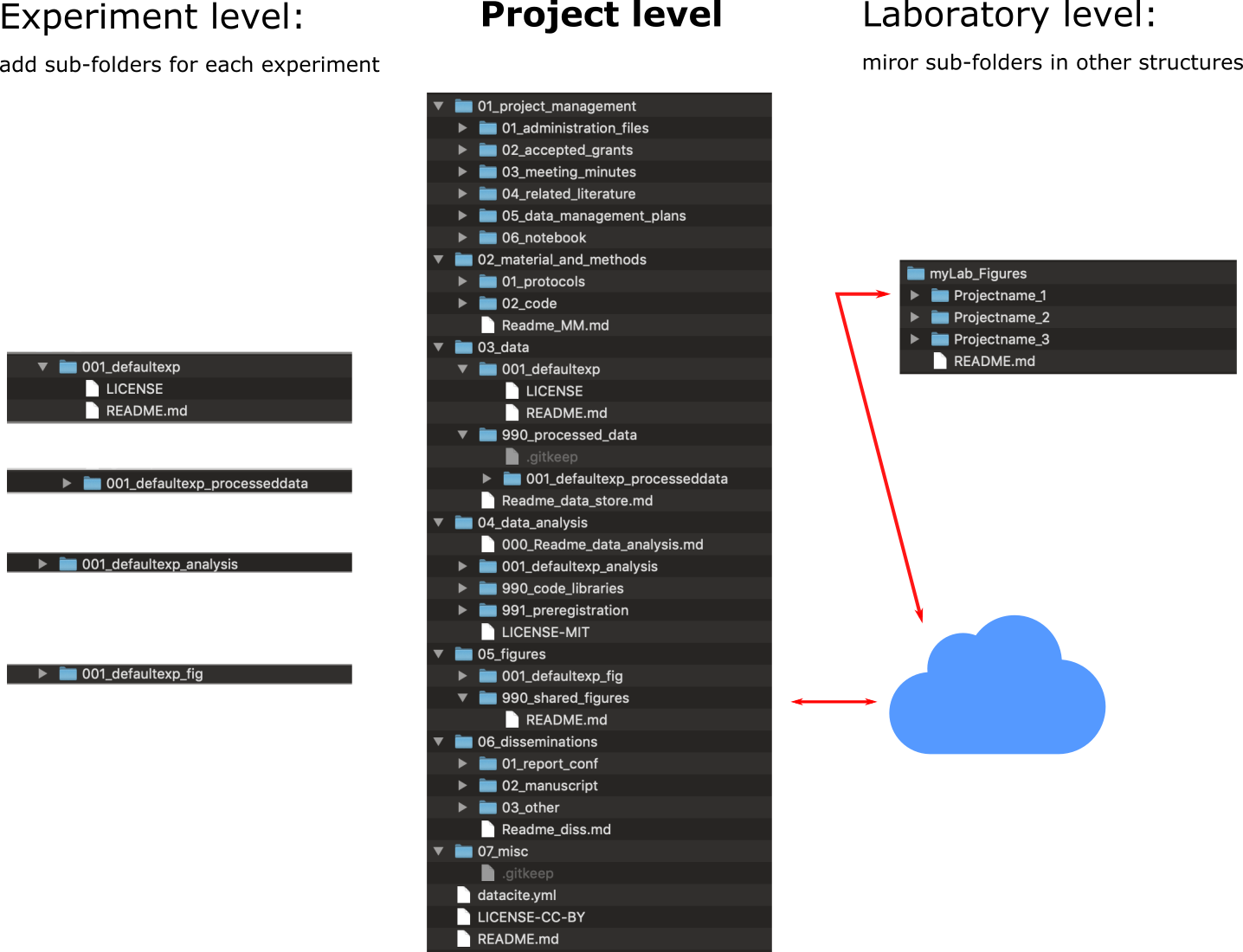 The Tonic Research Project Template provides an example of a primary folder with subfolders organized in a logical manner, from administrative and methodological materials to data and analyses.
See: Thorsten Arendt, Mittal, D., Sehara, K., Cook, T., & Julien Colomb. (2023). Folder structure template for research repositories (v2.4). Zenodo. https://doi.org/10.5281/zenodo.7763694
BIDS
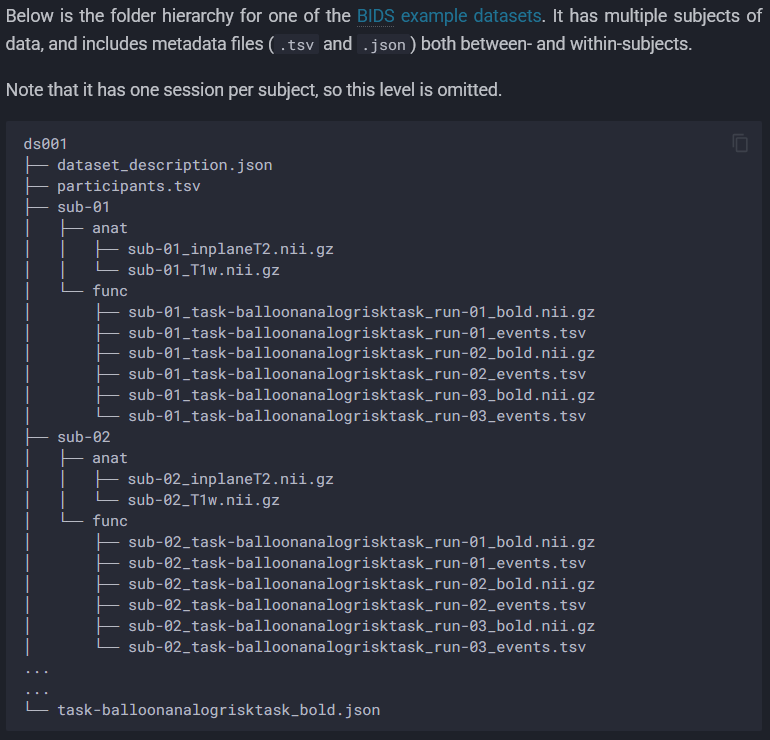
While it has been designed for neuroimaging projects, the Brain Imaging Data Structure (BIDS) offers inspiration for organizing experimental data, particularly when there are multiple participants and potentially multiple experimental sessions.
See: https://bids.neuroimaging.io/getting_started/folders_and_files/folders.html
Publication-Level
TIER Protocol
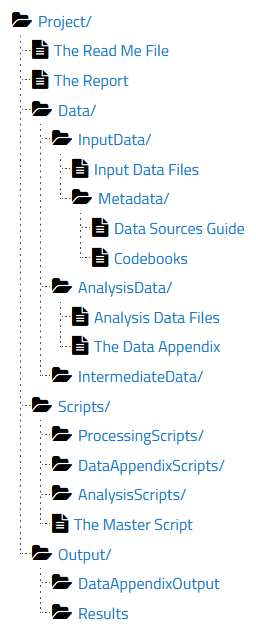 The TIER Protocol specifies how research materials (data, code, and documentation) should be organized so that results can be fully reproduced. It is primarily aimed at projects that use copy-and-paste workflows, where results are generated in output files and then copied and pasted into manuscripts.
See: https://www.projecttier.org/tier-protocol/protocol-4-0/
Good Enough Practices In Scientific Computing
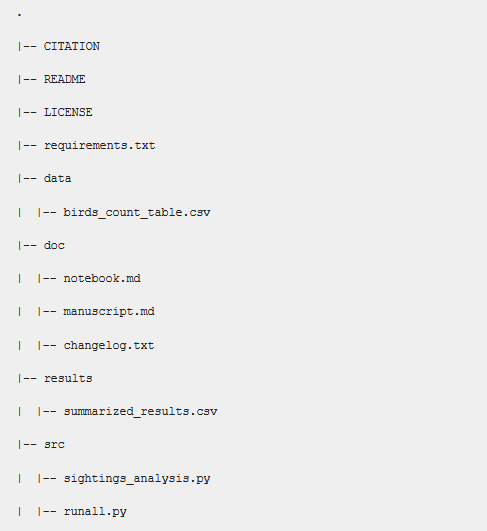
If you’re using programming languages such as R and/or Python, best practices include containing your project within a single, clearly recognizable folder, organizing similar content into subfolders (read-only, human-generated, project-generated), and including key files such as a README, LICENSE, CITATION, and CHANGELOG.
See: Wilson G, Bryan J, Cranston K, Kitzes J, Nederbragt L, Teal TK (2017) Good enough practices in scientific computing. PLoS Comput Biol 13(6): e1005510. https://doi.org/10.1371/journal.pcbi.1005510
Tools
Directory Trees
You can use tools such as https://ascii-tree-generator.com/ to sketch out your folder structure in advance. This could useful for planning and discussion before creating the folders and subfolders.
For an existing project, you can also use the
treecommand to print the directory tree. This would be useful for inspection or copy-paste into README files.
- Windows
Navigate to your project using cd path\to\your\project
Then enter tree /a /f > tree.txt, where a is for (sub)directories and f includes files.
- MacOS/Linux
Navigate to your project using cd /path/to/your/project
Then enter tree -a > tree.txt, where -a includes hidden files (files are otherwise included by default)
- You may need to install the
treetool on your computer. - When using the
cdcommand on Windows, pay attention to slashes (\vs./) or enclose your path in double quotes.
R & Python
There are R packages and Python libraries dedicated to initializing project directories according to best practices. Each tool works a bit differently, so it’s worth exploring a few to see which one best suits your workflow.
For R, you can consult the CRAN Task View on Reproducible Research and scroll down to the Project Workflows section, which lists several relevant packages.
For Python, you can use Cookiecutter Data Science or explore other available Cookiecutter templates.
You can reach out to RDM Support for help in figuring out your project’s structure and workflow!